
A Wumpus-shaped cell phone with a padlock displayed on it.
How to Discord

How Multi-Factor Authentication Helps Keep Your Discord Account Safe

A Discord account is more than just a username and avatar: it’s your key to talking the night away with your closest friends and favorite communities. It’s how your day can transform from just another Tuesday night to one of your most cherished memories. 

That’s why it’s important to keep your Discord account secure, so you can always stay connected to the ones you care about the most. Over the years, bad actors on nearly every social platform have grown a bit more crafty when it comes to taking over accounts. 

On Discord, you’ve got a few options at your disposal to help keep your account secure:

To make your account’s defenses as strong as possible, you should absolutely enable Multi-Factor Authentication with one or more Passkeys, or use an Authenticator app if you aren’t able to use Passkeys.

Read on for a quick explainer of how each of these features protects your account, plus some general security tips near the bottom of this post.
What Everyone Gets to Start: Login Verification Emails

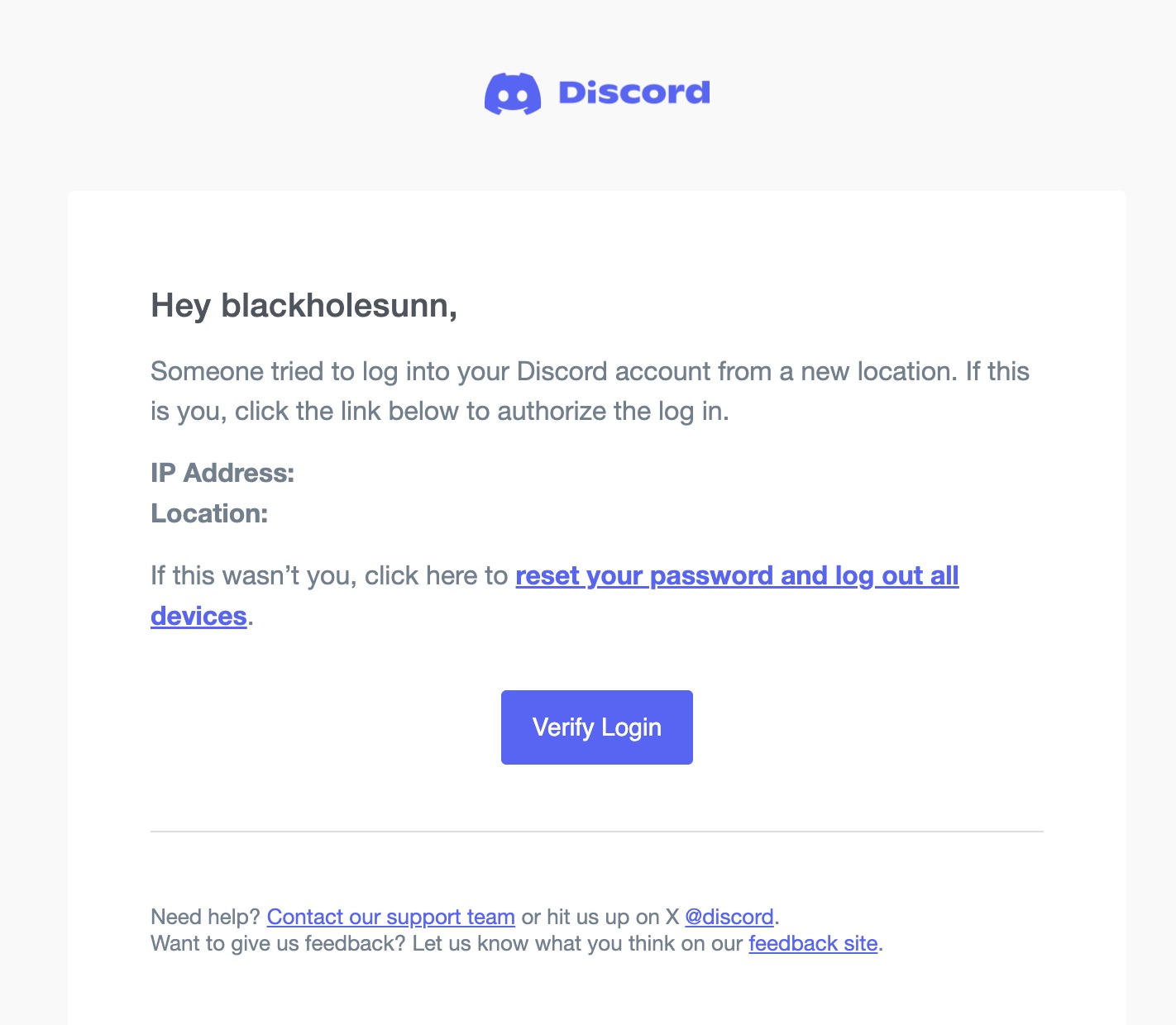
To start, any Discord account with a verified email address will receive Login Verification Emails if they try to sign in on a new location or device. When you sign in from a new location that you haven’t used Discord at recently, we’ll send you a Verification email to confirm the login location is legit. You click “Verify Login” and then Discord lets you in. Easy as that! 

New login location verification email.

Since it’s sent to your email inbox, it may not help much if your email account password is the same as your Discord account password (which is very bad for all sorts of reasons). 

Please use separate passwords on all your accounts throughout the internet. We’ll explain more in the Password Management section.

Let’s Talk Multi-Factor Authentication

Multi-Factor Authentication, or MFA for short, is like adding a strong second deadbolt lock to your front door. 

When you log into your Discord account with only a password, that’s just one lock for the door. If someone else guesses your single password, they instantly have your door key. Passwords are stolen, guessed, leaked, and breached across the internet constantly, meaning there’s a ton of similar-looking keys floating on the ‘net for bad actors to try to use on your front door. 

The “M” in MFA means that you can choose to use multiple different “keys” to log in besides just a single password that you know. In fact, Security Experts think about three factors to authentication: 

  • Something You Know: A password, or secret phrase. So long as only you know it and nobody else can guess it, this is a good starting point. (Just don’t use “p4ssw0rd”)
  • Something You Have: A device, or a set of physical keys. So long as only you maintain control of it, it’s a great option… but if you lose it, you’re sunk.
  • Something You Are: A biometric, like using your phone’s fingerprint reader or a face scan. People are usually pretty good at holding on to their faces and/or fingers, but if a copy is made (like a detective lifting fingerprints), it’s impossible for you to change them.

All of the following MFA options add at least one more factor to authentication beyond the “Something You Know” of a password. More Factors = More Secure.

Multi-Factor Authentication is strongly recommended for everyone. Everyone should turn on MFA! Including you! 

Important Note: Turning on any sort of Multi-Factor Authentication option will disable Login Verification emails.

The Fastest, Safest Security Option: Passkeys

The newest, most secure-est option in the World of Authentication is the Passkey. This method is practically phishing-resistant, meaning the bad actors can’t trick you into divulging it, and they certainly aren’t able to guess it. 

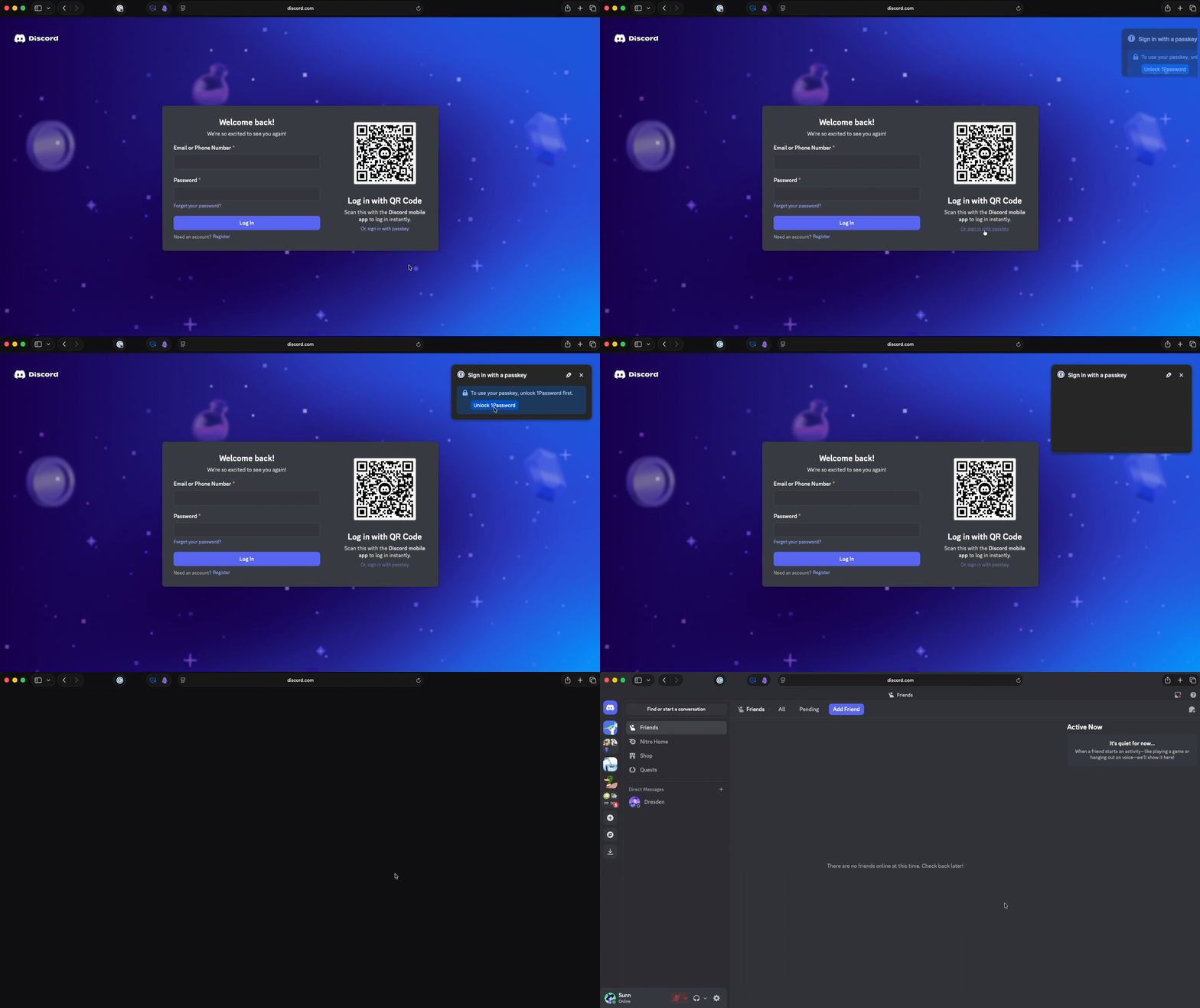
In technical terms, a Passkey is a cryptographic handshake between a device you own (such as your phone, computer, or hardware device) and Discord that can only be unlocked using your fingerprint, face scan, or device PIN. 

Passkey login demonstration.

Your biometrics and device remain with you, and only a cryptographic key used to approve your login is passed to Discord. It’s like using your FACE (or fingerprint, or PIN) to unlock an insanely long password that only your device and Discord can validate.

Discord supports up to 16 Passkeys per account, so you can add ‘em to your password manager on Android, iOS, your web browser, tie it to a physical security key, and more. We also recommend adding a Passkey to some sort of credential manager, such as 1Password or Bitwarden, so you can bring a spare Passkey wherever you go. 

This makes a Passkey “Something You Have” since it’s tied to a device and, if it requires a biometric to unlock, it is also “Something You Are”. It’s a two-for-one deal.

Another Option: One-time Codes via an Authenticator App 

The next security feature is called an Authenticator App, which generates something known as a “Time-Based One-Time Code.” 

Authenticator Apps work by sharing a “starter value” between Discord and your Authenticator App. Then, every 30 seconds, the Authenticator App will create a new PIN code that you use while logging into Discord. Since Discord has the same starter value, we generate the same PIN code and make sure they match. Since nobody likes to try to time their verification, we also generate the previous code and check that, that way you get a full minute to log in. 

There are free apps that can help with this, such as Authy, Microsoft Authenticator, or Google Authenticator. Grab one of those and follow this video guide to breeze through Authenticator App setup!

After setting up your Authenticator App, you should absolutely save your Backup Codes. Backup Codes can be used if you misplace or lose your Authenticator App and don’t have a Passkey set up. We strongly recommend storing them in a password manager or somewhere where you’ll never lose them. 

If you ever lose, forget, or get your Backup Codes stolen when the shoebox under your bed goes missing (and you can still use your Authenticator App normally), you can regenerate them in My Account > View Backup Codes > Generate New Backup Codes.

If You Have To: SMS Backup Authentication

Look, even if you’ve got the most secure combo of password and 2FA app imaginable, sometimes Wump Happens. Your laptop gets smashed as you pull a sick bike jump, or your phone tumbles down one of those rain gutters that happens to be the exact size for a phone to fall in. 

SMS Authentication button.

SMS Backup Authentication lets you receive one-time-use codes via text message if your mobile authenticator is inaccessible. It’s optional, but it can help ease your worries if you’re stressed about relying solely on an authenticator app to sign in each and every time, especially if you plan to switch to a different device down the road. 

As a bonus, enabling SMS Backup Authentication helps fulfill requirements for servers that have their Verification Level for members set to the highest. If a community requires a phone number on your Discord account in order to participate, you’ll already be set to go! 

Password Management 101

Before you verify your login location via email or use your Authenticator App, the first thing you’ll type is your password. Even with secondary login verification methods, it’s important to have a secure, unique password that you aren’t using anywhere else.

Even if you’ve got “th3_m0s7-s3cuRe_p422w0rd-u-cAN_m3mor1z3,” don’t count on that single password being your only one. Unfortunately, data breaches happening all over can expose your login information to anyone simply looking to gain access to random accounts across the ‘net, regardless of their intention.

We recommend checking your email or phone number on Have I Been Pwned, a site that can cross-reference emails and phone numbers with data breaches that have happened before. If your info pops up on a pwned website, you should consider any passwords you may have used there at risk, and they should be updated or changed as soon as possible.  

Thankfully, you don’t need to memorize that “s3cuRe_p422w0rd.” Nowadays, credential managers like 1Password or Bitwarden will create complex passwords for you AND remember them for you. 

You can even save your Passkeys or time-based Authenticator codes within some of these credential managers, making these apps your one-stop shop to log in to Discord and any other accounts you may have around the internet. 

Prefer to have your browser save your password? Most modern browsers, such as Chrome, Firefox, and Safari, can help save your secure password without needing to download another manager. No matter what way you save your password, it’s going to be way better than one that’s your favorite color repeated three times. 

Have Your Phone On You? Try QR Code Login! 

If you’ve got your smartphone on you at all times, there’s a good chance that phone already has both Discord and your authentication app installed. After all, how else are you gonna check in on your friends on the go?

With QR Code Login, you won’t need to sign in using your email address, password, one-time login code, or even your Passkey. It’s great for using Discord on a shared computer, or your secure password is dozens of random characters that can take minutes to transcribe. 

QR Code Login

As long as the mobile device you’re using Discord on has a camera, you can point it at your computer’s screen and use it to sign in to the desktop or web apps — it brings a new meaning to point-and-click! 

Get the whole scoop on QR Code Login at the Help Center article here

Account Recovery Options

Look, sometimes we forget we changed our own password. But if your account security’s gone awry, there’s a non-zero chance that some bad actor may get in and mess stuff up. Like painting your room’s walls an ugly avocado green color.

And, if something else happened and you still need help, you can send a message to our support team, and they’ll help you out in any way they can. 

TL;DR

If you do the following, it’ll be very difficult for someone to compromise your account:

  • Use a unique password for your Discord account, and if it’s just a word in the dictionary, you’re doing it wrong.
  • Set up a Passkey so all you need to securely log in is your EYEBALLS. Or your big chunky FINGERS. 
  • Enable Multi-Factor Authentication, ideally with a Passkey, to add an extra layer of security between you and your Discord account.
  • Use credential managers like 1Password or Bitwarden to generate unique, complex passwords. They’ll even remember them for you! 
  • Use QR Code Login on shared computers to log in to Discord without entering your login info. And when you’re done using Discord on that shared computer, sign out!! 
  • We’ve got MFA. Use it, m’kay?

Even with all of the above, our final piece of advice is important enough to encompass your entire internet presence: never download and run any programs from people or sites you don’t trust! Even with the most secure password and MFA setup and a real guard dog sitting on your keyboard, running malicious software can cause a whole lot of harm than just one lost account. Above all, stay smart, stay vigilant, and stay safe out there. If something goes wrong, you can always reach out to our support team at dis.gd/support.

Tags
No items found.

related articles